
Your team and what each role sees
Add practitioners and staff logins, and what owners, managers, front desk, practitioners, and billing staff can see.
For: OwnersManagers
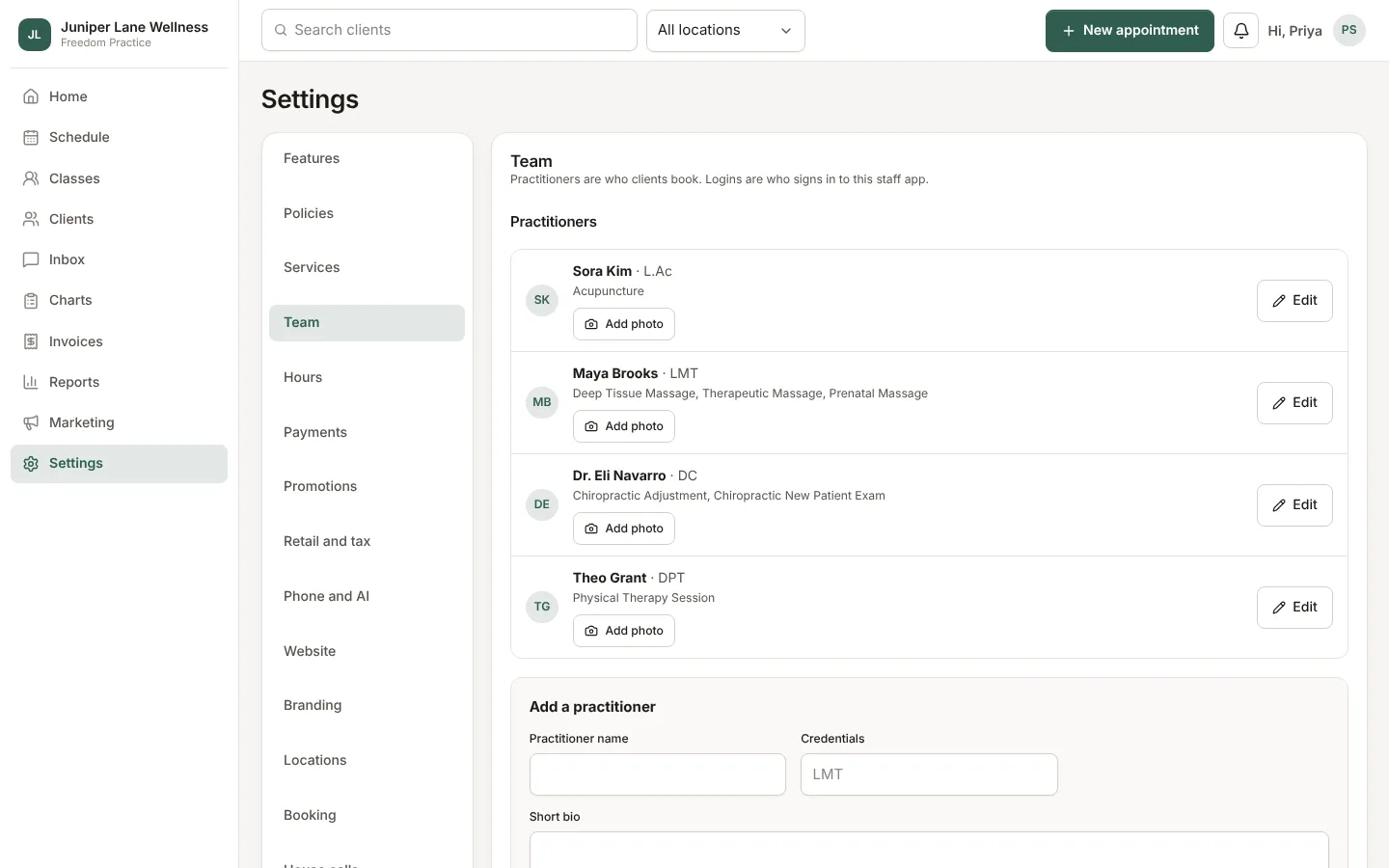
Your team has two parts in Settings → Team: practitioners, who clients book with, and logins, the people who sign in to the staff app. A practitioner who signs in has both.
Add a practitioner
- Open Settings → Team and choose Add practitioner.
- Enter their name as clients should see it, a short bio, and a photo if you like.
- Pick the services they offer.
- Choose Save, then set their hours in Settings → Hours.
Add a login
Choose Add a login, enter their work email, and pick a role. They sign in with a one-time code sent to that email; there is no password to forget.
What each role sees
- Owner: everything, including billing, security, data export, and support access.
- Admin: everything except granting support access.
- Manager: the schedule, clients, reports, payouts, and everyone's hours. Not Settings beyond hours.
- Front desk: the schedule, clients' contact details, the inbox, checkout, and balances. Not charts or reports.
- Practitioner: their own schedule, their own clients and notes, their own numbers, and My hours. Another practitioner's client shows only as a busy time.
- Billing: invoices and claims, without notes.
Owners, admins, and managers enter a code from an authenticator app at sign-in. You can require it for everyone under Settings → Security.
Still stuck? Contact support, or in the app open your account menu and choose Contact support.