
Hours, days off, and time off
Set each practitioner's usual weekly hours, open or close single dates, and approve time-off requests.
For: OwnersManagersPractitioners
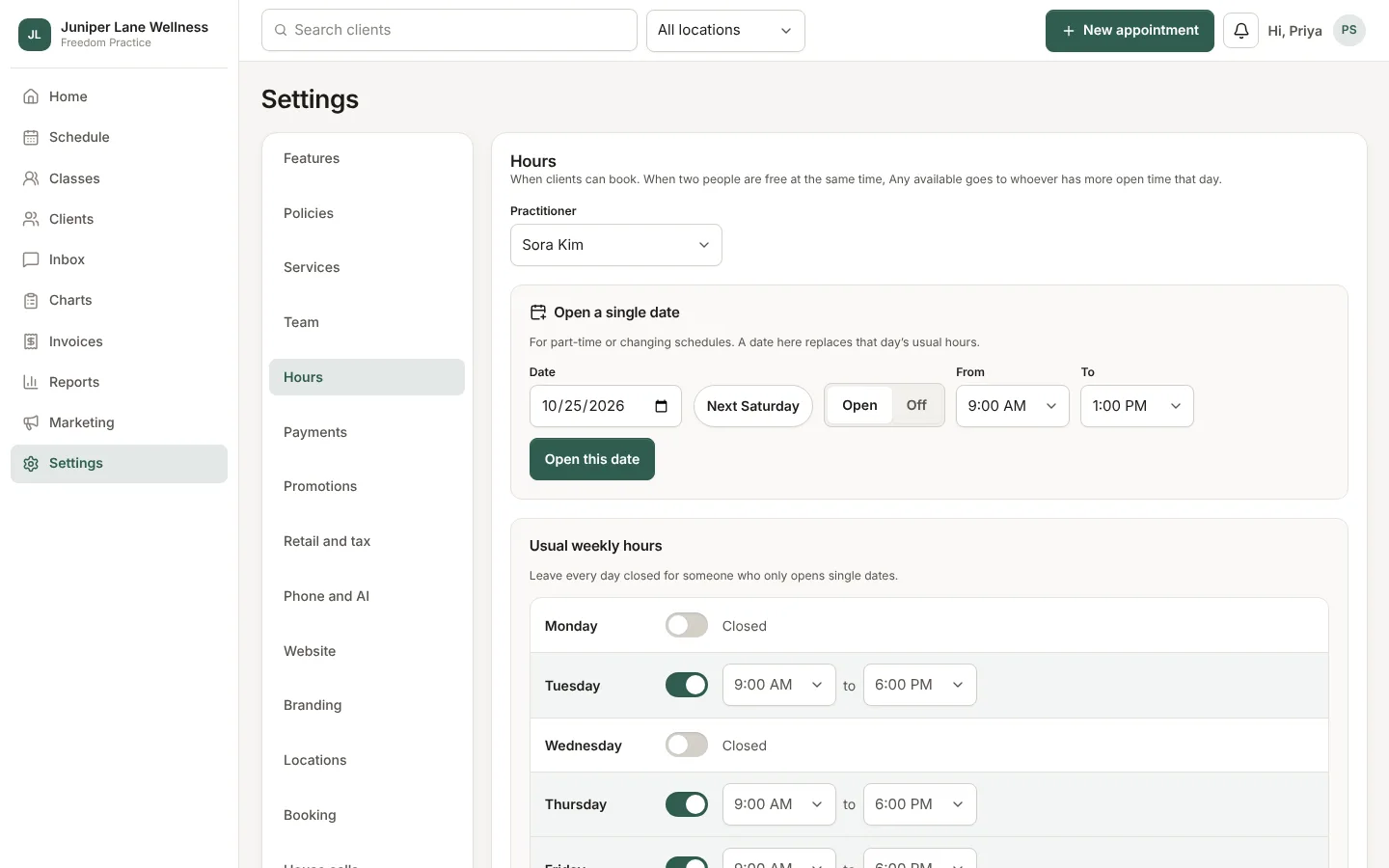
Clients can only book inside a practitioner's hours, and only times that are free. If someone shows no open times, their hours are the first place to look.
Usual weekly hours
- Open Settings → Hours (practitioners see My hours).
- Pick the person and the day, then add one or more blocks, such as 9:00 to 12:00 and 1:00 to 5:00.
- Choose Save weekly hours.
Single dates
For a part-time schedule or a one-off change, add a single date as open (extra hours that day) or off (no bookings that day). Single dates win over the weekly hours.
Time off
A practitioner can choose Request time off for a range of days. A manager or owner approves it, and the days turn into days off. Visits already booked on those days are not moved; use Move visits to someone else in Hours to hand them to another practitioner.
Who can change what
A practitioner changes only their own hours. Managers, admins, and owners change anyone's. Clinics with more than one location can give each location its own time zone under Settings → Locations.
Still stuck? Contact support, or in the app open your account menu and choose Contact support.