
Book, move, and change visits on the schedule
Book from an empty time or New appointment, drag a visit to move it, drag its edge to change its length, and find a time across the team.
For: Front deskManagersOwners
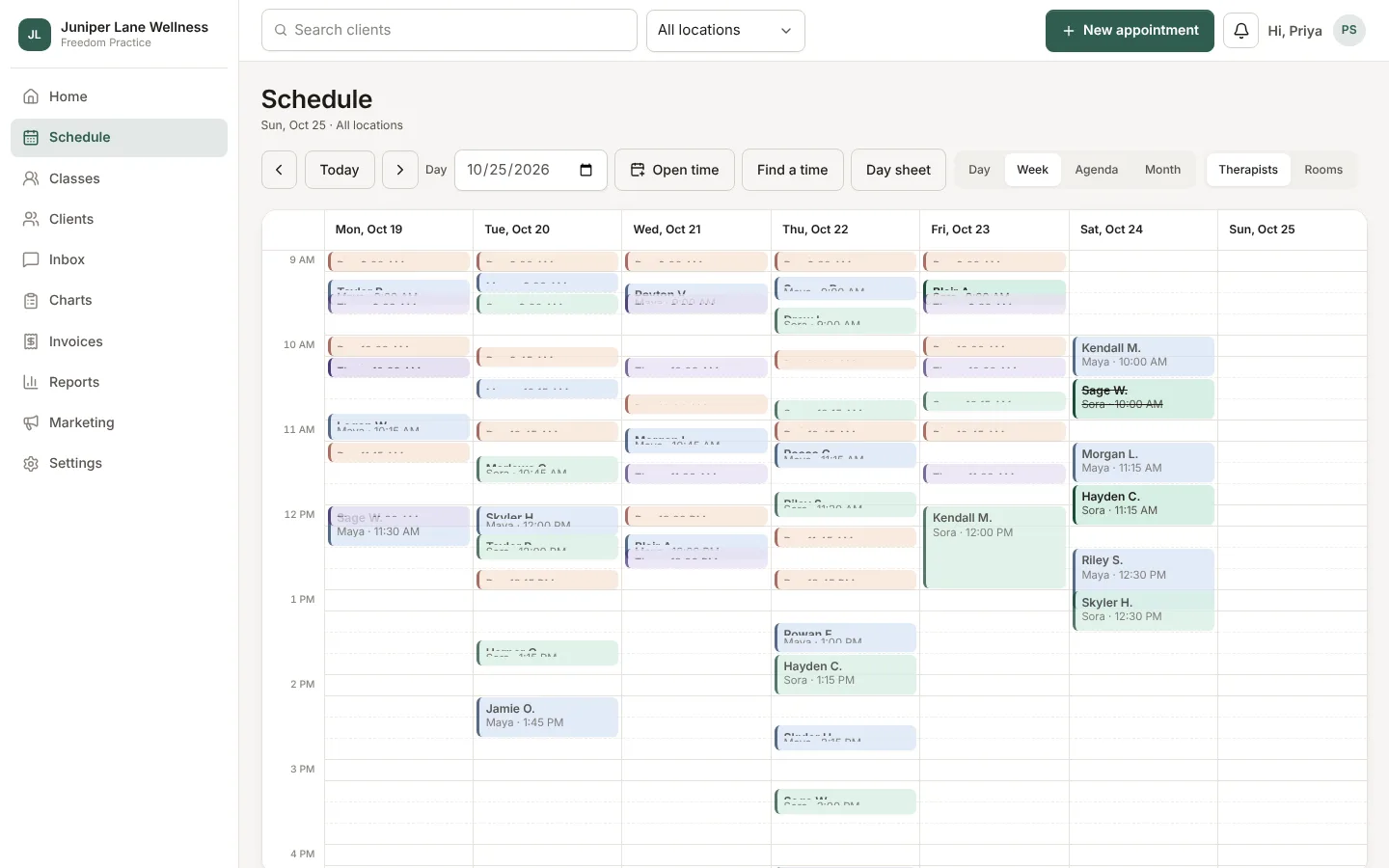
The Schedule shows each practitioner as a column. Switch between Day, Week, Agenda, and Month at the top.
Book a visit
- Click an empty time in a practitioner's column, or choose New appointment.
- Find the client, or add a new one.
- Pick the service and any add-ons, and check the time and practitioner.
- Set the source (Phone call or In the office) so your reports know where bookings come from.
- To repeat it, choose every 1 to 4 weeks for up to 12 visits. Times already taken are skipped and listed.
- Choose Book. The client gets a confirmation text or email with links to manage the visit.
You can also book from a client's profile with Book a visit. No lead time applies to staff bookings.
Move or resize a visit
- Drag a visit to a new time or another practitioner's column.
- Drag the bottom edge to make it longer or shorter.
Overlaps are refused. A time outside the practitioner's hours asks you to confirm once more.
Find a time
Find a time searches the whole team for the next openings that fit a service, then opens the booking form on the one you pick.
What the chips mean
Visit cards show small chips: confirmed, intake done, new client, request (waiting for approval), and Home for a house call.
Print the day
Day sheet makes a printable PDF of the day's visits.
Still stuck? Contact support, or in the app open your account menu and choose Contact support.