
Write and sign a visit note
Quick text for your practice type, the body chart, intake answers, the AI scribe draft, and signing and locking.
For: PractitionersOwnersManagers
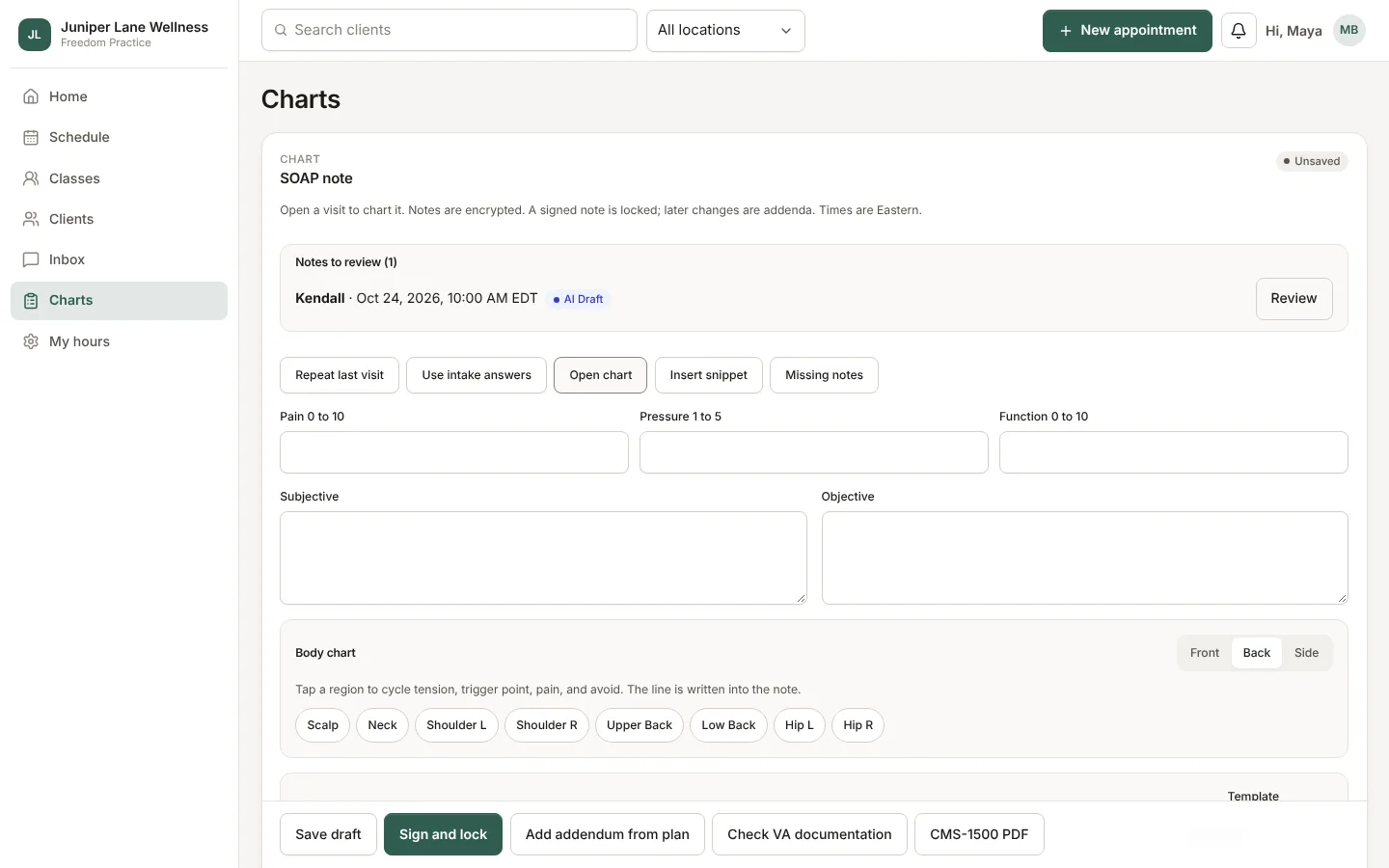
Open Charts, or open a visit and go to its note. The note opens with quick text for the visit's service: massage, chiropractic, physical therapy, or acupuncture.
Fill it in
- Repeat last visit copies the last note's plan and findings so you only change what is new.
- Quick text adds common phrases with one tap, including CPT codes with minutes for timed services.
- The body chart (front, back, and side) marks where you worked or where it hurts.
- Intake answers and the client's check-in scores fill in Subjective for you.
- What changed since last visit shows the differences at a glance.
The AI scribe
With the client's consent, the scribe turns the conversation into a draft. The draft stays unusable until you review it and accept what you want; nothing goes into the note without you.
Sign and lock
Choose Sign and lock when the note is done. It is stamped with the time and cannot be edited. To add something later, add an addendum; it is stamped with its own time.
Billing units
For timed codes, units follow the CMS 8-minute rule on the note and on the CMS-1500. For VA Community Care, a documentation check (timed minutes, goals, progress, and signature) runs before a claim.
Share with the client
On a signed note, choose Share with the client to show them the plan or the whole note in their client hub. Codes are never shown to clients.
Still stuck? Contact support, or in the app open your account menu and choose Contact support.